Getting started with your Wedding Space
What you can do from day one, and the order that works best.
Updated on October 29, 2026
Wedding Space is where your guests find the details of your wedding, confirm their attendance, leave you messages and share their photos. Creating and editing it is free: you don't pay or decide anything until you want your guests to see it.
The home screen
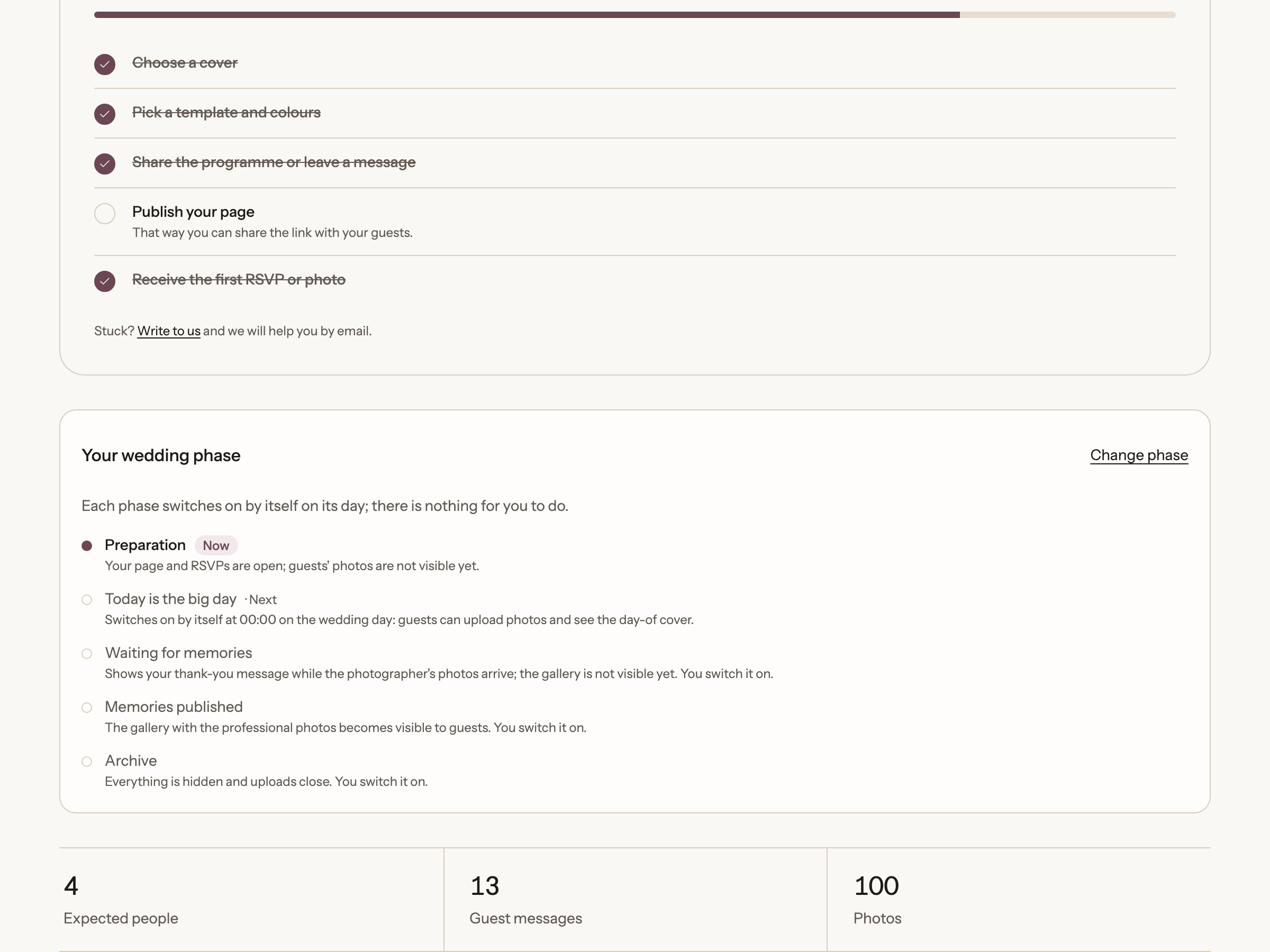
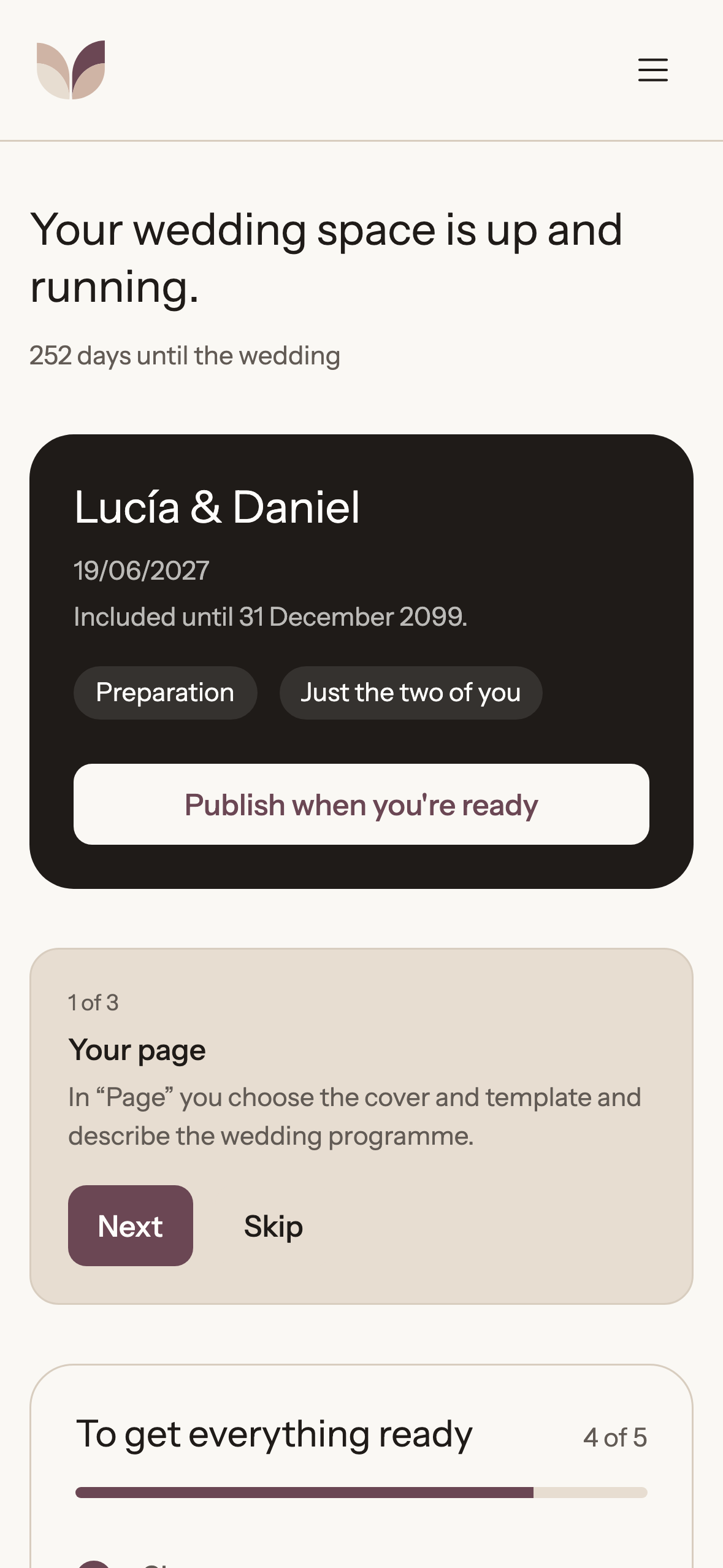
When you sign in you'll see a summary of your space: the days left until the wedding, the people expected, guest messages and photos. Below it are three shortcuts: Edit page, View memories and Share link.
It works the same on a phone: open the menu from the button at the top.
What each section is for
- Home: the summary and what to do next.
- Page: where you design what your guests will see (cover, style, event, story, useful info and FAQ).
- Guests: the guest list, the attendance replies and the questions on the form.
- Memories: the photos and messages your guests leave.
- Share: publish your page, copy the link and download the QR code kit.
- Settings: your plan, languages, notifications and everything else.
The phases of your wedding
On Home you see the Your wedding phase card, with the five phases and what changes in each: *Preparation*, *Today is the big day*, *Waiting for memories*, *Memories published* and *Archive*. *Today is the big day* switches on by itself at 00:00 on the wedding day; there is nothing for you to do. You switch on the later ones with Change phase (it opens *Settings*, *My wedding* tab).
An order that works
- Prepare the page: add a cover photo, pick a template and palette, and fill in the event. Changes save automatically, but nobody else sees them until you publish.
- Add your guests if you want to know who hasn't replied yet (the guest list is part of the Wedding Space plan).
- Publish from *Share* with the Wedding Space plan. Until then, nobody but you can see the page.
- Share the link on WhatsApp, in your invitation or with the QR code.
- On the wedding day, let your guests upload their photos from their phones, with nothing to install.
If something isn't clear, every screen has a ? button that opens the help for that screen.
Ready to start?
Create our website for free