Voice messages from your guests
How to turn them on, how your guests record them and where only you can listen to them.
Updated on October 28, 2026
A written message is read in a minute; a voice is kept for life. Your guests can record you a message from your wedding page itself, and only you can listen to it: voice messages are never shown on the page.
Voice messages are included in the Wedding Space plan: up to 200, 3 minutes at most each.
Turning them on
- Go to Settings, open the Participation tab and find Guestbook.
- Turn on Receive voice messages.
- Press Save.
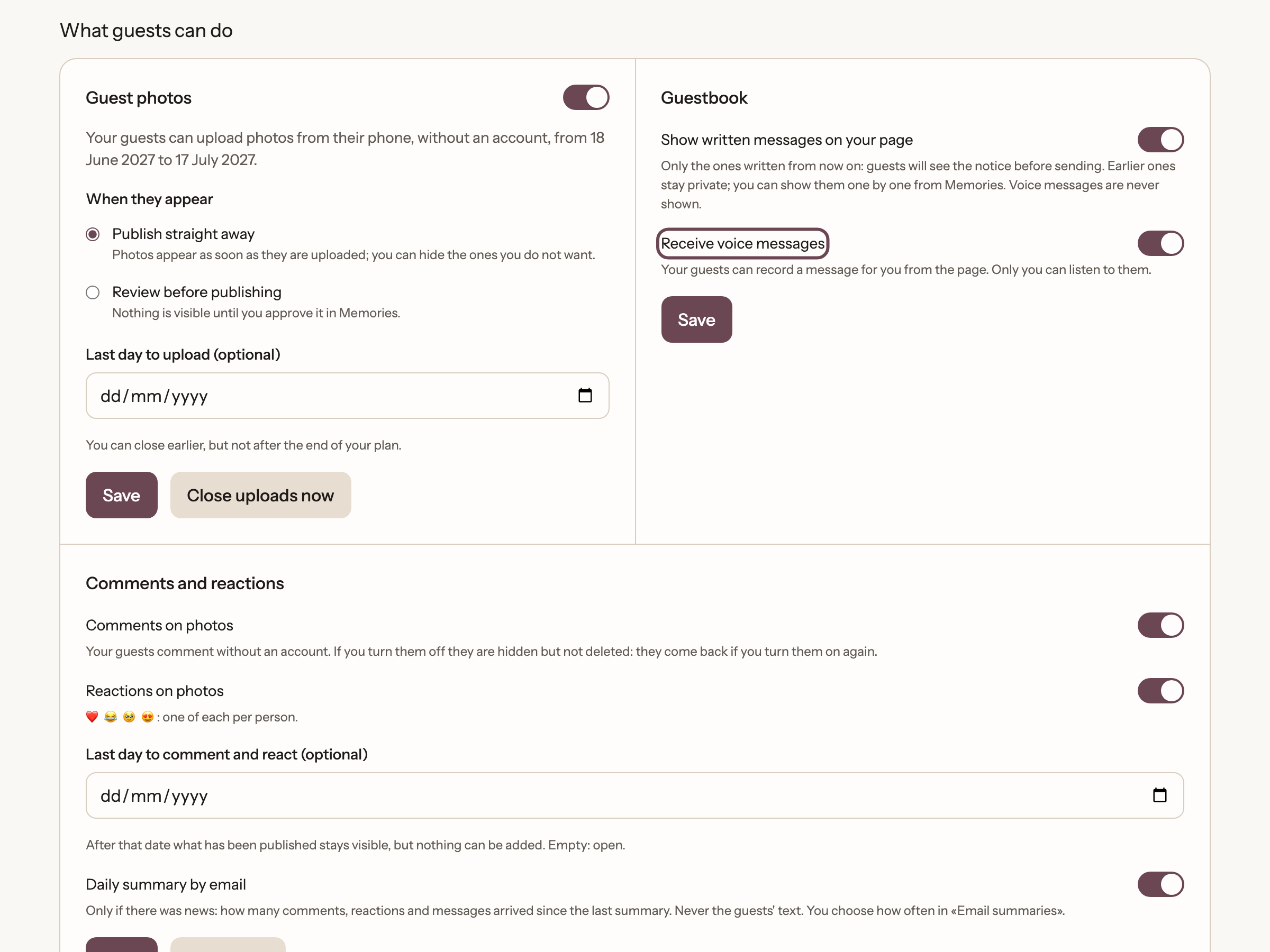
In that same section you decide whether written messages are shown on your page. That option doesn't affect voice, which is always private.
What the guest does
- Opens your page and scrolls down to Leave a message for the couple.
- Chooses the Record tab.
- Presses Record and speaks. They can listen back before sending, record again, or upload a voice note they've already made.
- Presses Send.
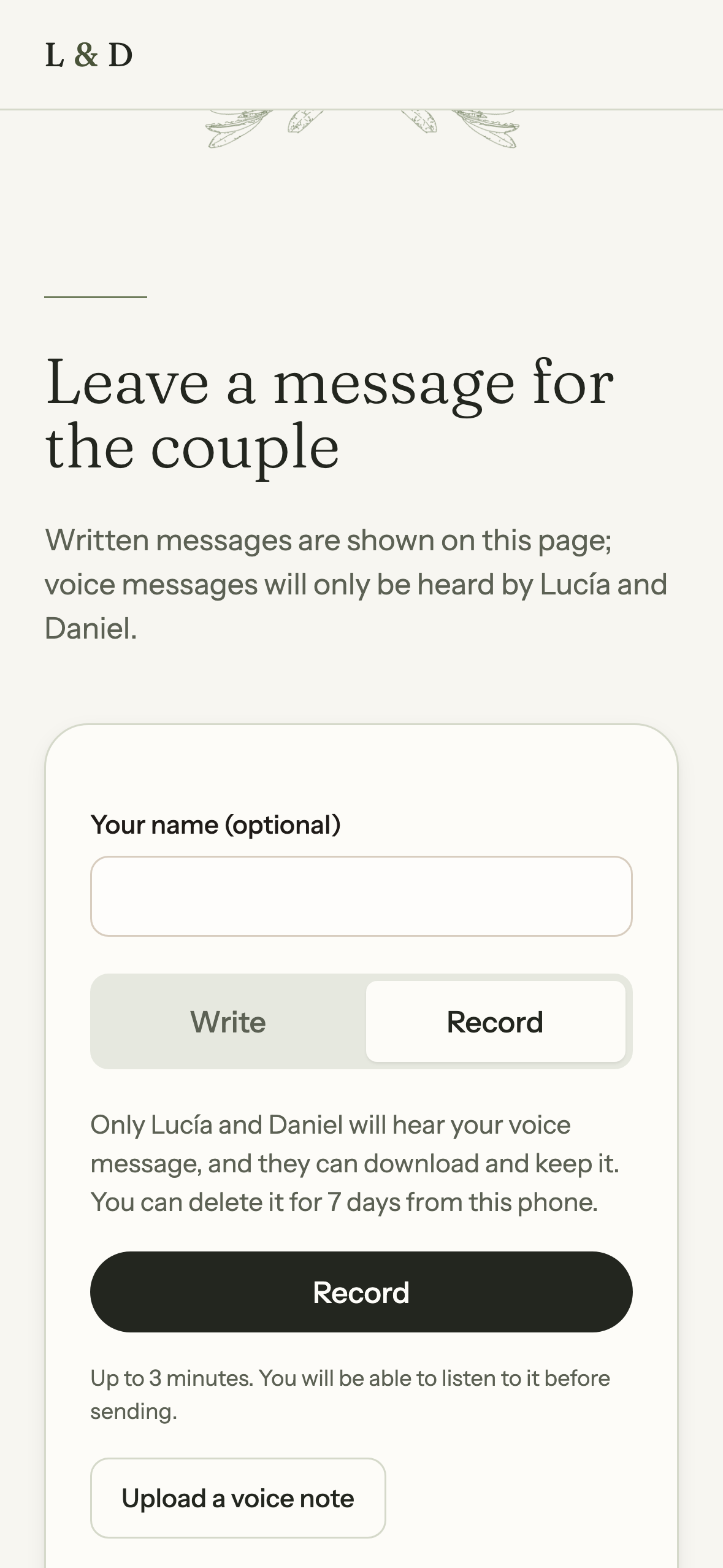
Before sending, the guest sees a notice that only you will be able to listen to it. They can delete their message for 7 days from the same phone. The first time, the browser asks for permission to use the microphone; if they're inside WhatsApp or Instagram, we tell them to open the page in Safari or Chrome.
How long they can be
Up to 3 minutes each. The recorder warns when 30 seconds are left. You can keep up to 200 voice messages at once.
Listening to them and keeping them
In Memories, From guests tab, under Message book, you see your guests' written and voice messages. Each voice message has its own player to listen to it, and you can Download or delete it.
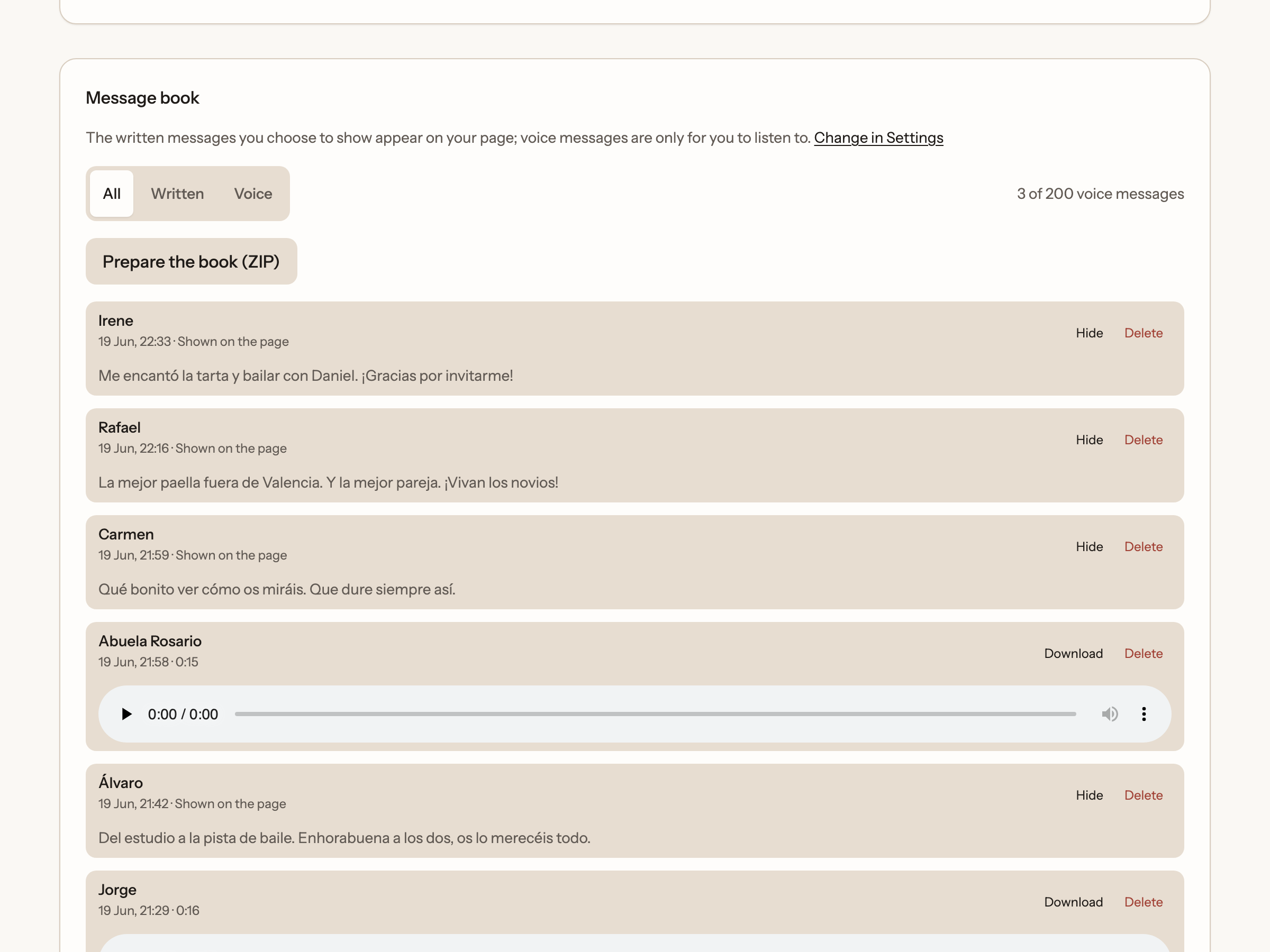
We recommend downloading the ones that matter most to you, so you keep them outside Wedding Space too once your plan ends.
Ready to start?
Create our website for free